

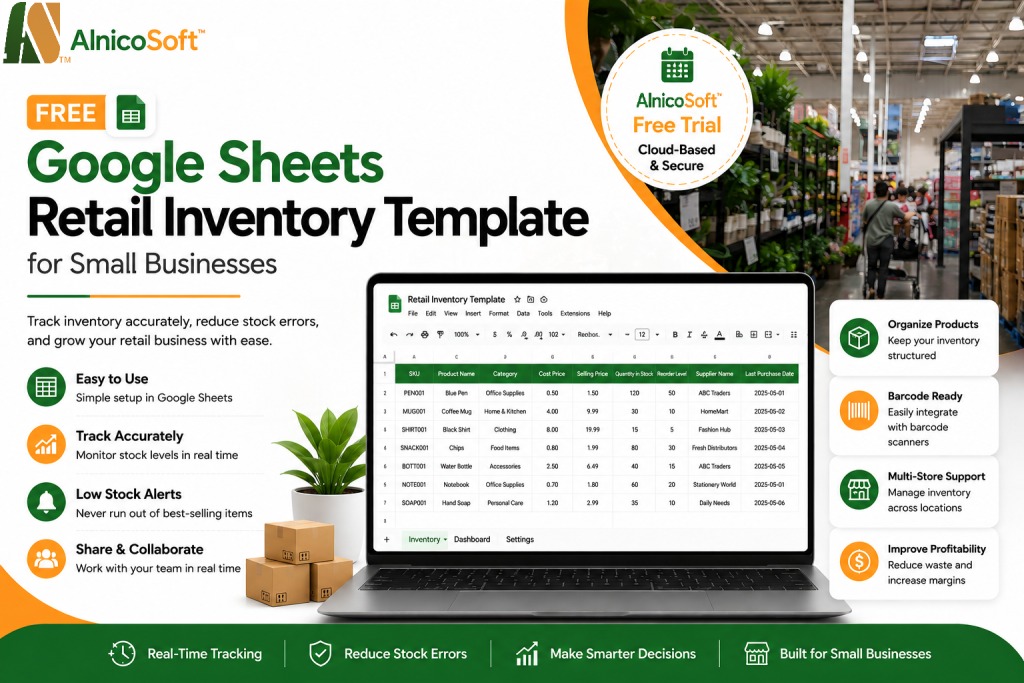
Free Google Sheets Retail Inventory Template for Small Businesses
Track Inventory Accurately, Reduce Stock Errors, and Improve Profitability
Managing inventory efficiently is one of the biggest challenges for small retail businesses. Whether you run a convenience store, boutique, grocery shop, hardware store, or home-based business, your profitability depends on how accurately you track stock.
Most small businesses start with manual tracking or notebooks, but this quickly becomes unreliable as sales increase. Products go missing, stock gets over-ordered, and money gets locked in unsold inventory.
A free retail inventory spreadsheet template in Google Sheets is one of the simplest and most effective ways to solve this problem without investing in expensive software.
In this guide, you will learn how to build a professional inventory system using Google Sheets, what columns to include, real-world formulas.
What Is a Retail Inventory Spreadsheet in Google Sheets?
Key Features
Unlike paper logs or manual tracking, Google Sheets allows you to:
- Track inventory in real time
- Access data from mobile or desktop
- Share with staff instantly
- Prevent data loss with cloud backup
It acts as a basic inventory management system for small businesses without requiring any software installation.
Why Inventory Management Is Critical for Small Retail Businesses
Prevent Lost Sales Due to Stockouts
Avoid Overstocking and Cash Blockage
Too much inventory ties up working capital that could be used for marketing, operations, or expansion.
Improve Purchasing Accuracy
With proper tracking, you know exactly when and how much to reorder.
Reduce Shrinkage and Errors
Shrinkage from theft, damage, or data entry mistakes is one of the biggest hidden costs in retail.
Improve Business Profitability
Free Google Sheets Inventory Template Structure (Essential Columns)
Product SKU (Stock Keeping Unit)
A unique code assigned to every product.
A unique code assigned to every product.
Example:
- SNACKS_SMALL
- DOLL_MEDIUM
- LARGE_TABLE
SKUs help eliminate confusion between similar products.
If you would like to know more about SKU or Product Code then check the blog – https://alnicosoft.com/product-id-vs-sku-vs-product-code-vs-barcode/
Product Name
Clear description of the product.
Example:
- Small Size Pack Snacks
- Medium Size Doll
- Large Size Table
Product Category
Helps organize inventory into meaningful groups.
Examples:
- Clothing
- Electronics
- Food Items
- Accessories
- Office Supplies
For example – Shirts, Pants, Bedsheet all these items will be under the Clothing Category. TV, Refrigerators all these will be part of Electronics.
Cost Price
Selling Price
The retail price charged to customers.
Quantity in Stock
Reorder Level
Minimum stock threshold before restocking. This is critical to avoid running out of fast-selling items.
Supplier Name
Last Purchase Date
Notes
Additional product details such as size, color, or variations.
Sample Inventory Table (Google Sheets Format)
| SKU | Product Name | Category | Cost | Selling Price | Quantity | Reorder Level |
|---|---|---|---|---|---|---|
| PEN001 | Blue Pen | Office | 0.50 | 1.50 | 120 | 50 |
| MUG001 | Coffee Mug | Home | 4.00 | 9.99 | 30 | 10 |
| SHIRT001 | Black Shirt | Clothing | 8.00 | 19.99 | 15 | 5 |
How to Create an Inventory Spreadsheet in Google Sheets (Step-by-Step)
Step 1 : Sign in to Google Drive Folder
- Sign in to Google Drive folder – https://drive.google.com/drive/my-drive
- Move your mouse to “My Drive” and click on right mouse button. That should open a pop-up menu.
- Select the “New Folder” menu. That should give you an option to create new folder.
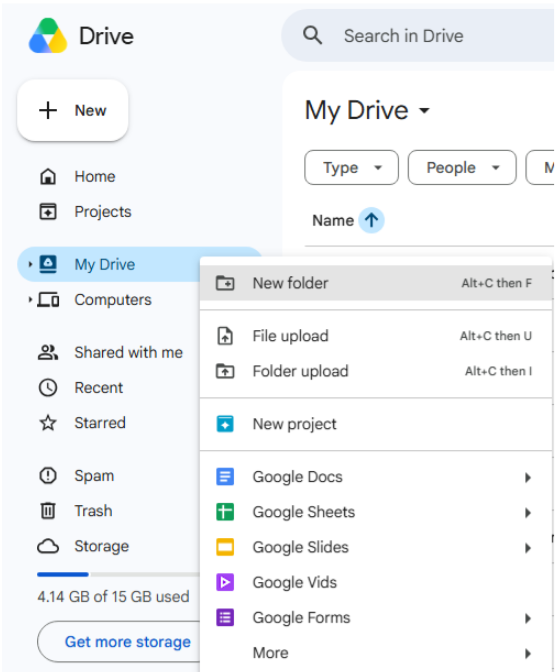
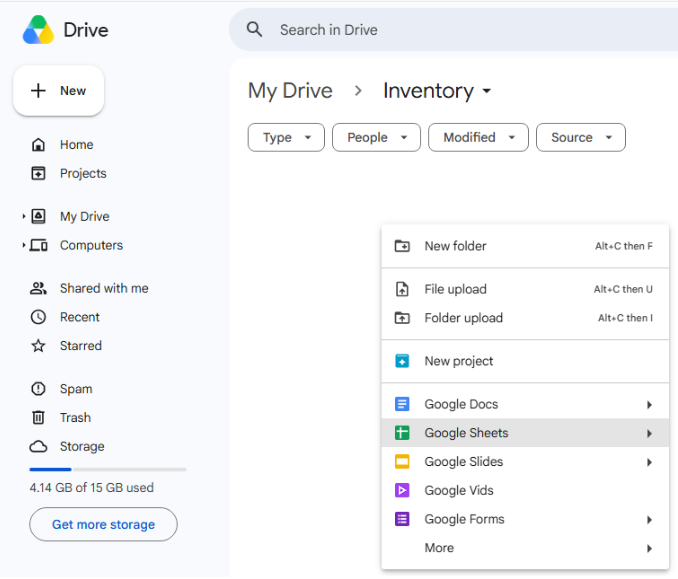
Open the new folder and again click on right mouse button. That should open a menu. Select the menu “Google Sheets”. It will create a new Google Sheet page for you.
Step 2: Set Up Column Headers
Create clear and standardized headers in the first row.
Change the color of the header and make the font bold.

Step 3: Format for Readability
To improve usability:
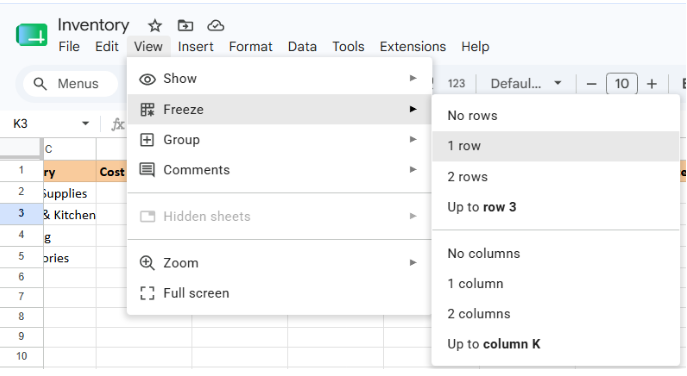
- Freeze header row-
- Select menu option “View -> Freeze-> 1 Row”
- Enable filters
- Apply conditional formatting for low stock alerts
- Use color coding for categories
Step 4: Add Smart Formulas
Inventory Value Formula
Calculate total stock value per product:
=Quantity * Cost Price
Profit Estimation Formula
Estimate potential profit:
=(Selling Price – Cost Price) * Purchased Qty
Low Stock Alert Rule
Highlight products needing restock:
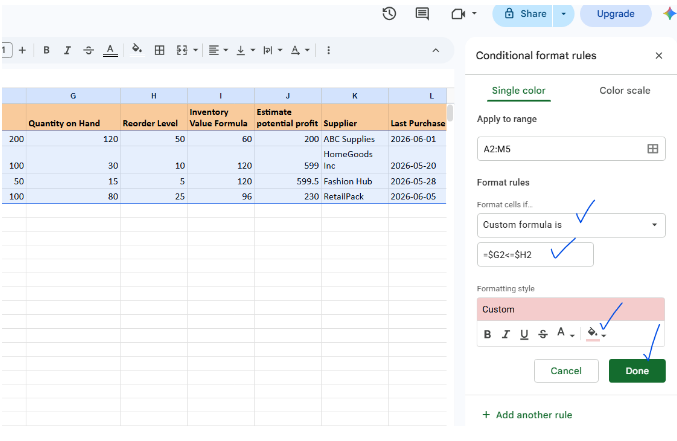
If Quantity on Hand <= Reorder Level
Use conditional formatting to automatically highlight the row if there is a low stock.
- Select all cells except header and then select “Format -> Conditional Formating”
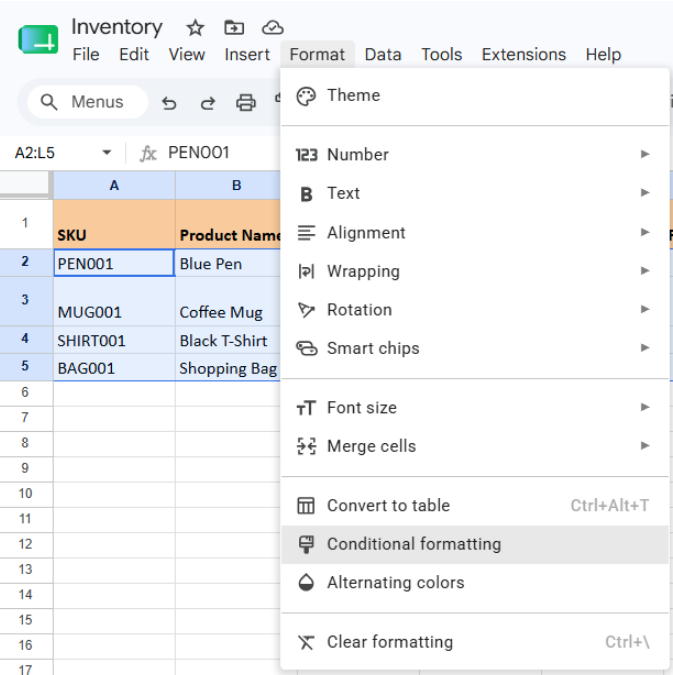
- Select the “Custom Formula Is” option from the dropdown list.
- Enter the formula to compare “Reorder Level” and “Quantity on Hand” and also select the custom color. Click on the “Done” button.

Step 5: Create Inventory Insights Using Pivot Tables
Google Sheets pivot tables allow you to analyze:
- Total inventory by category
- Low-stock products
- Supplier-wise stock distribution
- High-value inventory items
This turns your sheet into a basic analytics dashboard.
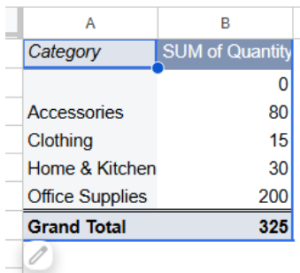
Steps to be followed to create pivot table to count total inventory by category –
- Select menu Insert -> Pivot Table
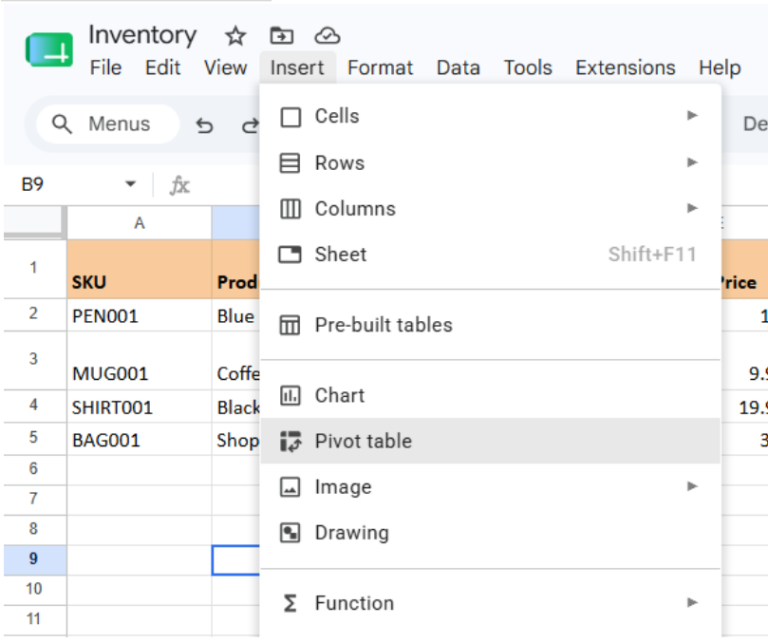
- Select the Data Range i.e all cells from the sheets. Then, click Ok.
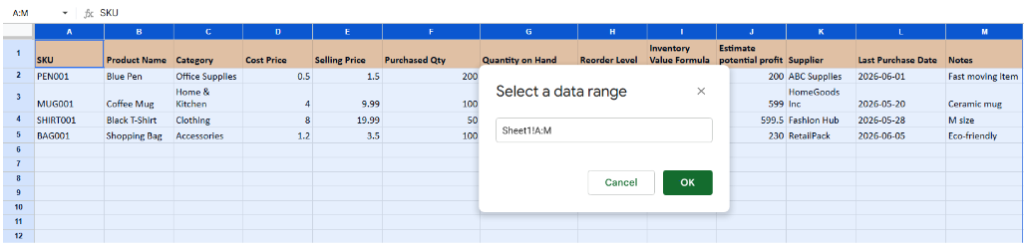
- Select Next Sheet option. Then, click “Create” button. This will create a Pivot table in new Tab page.
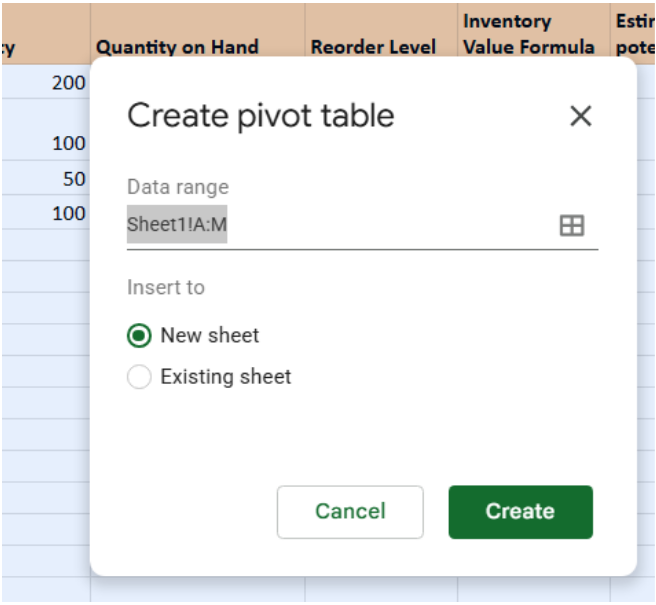
- Click “Add” button of Row
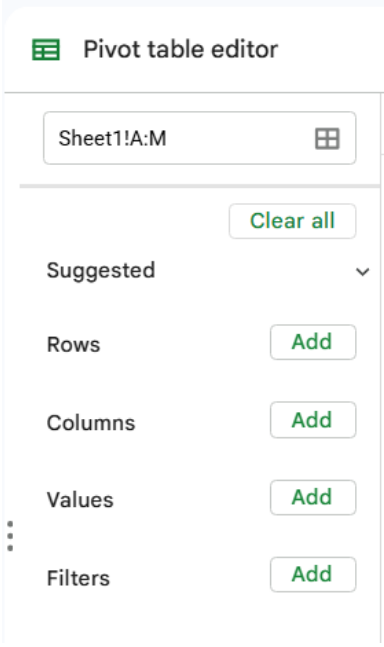
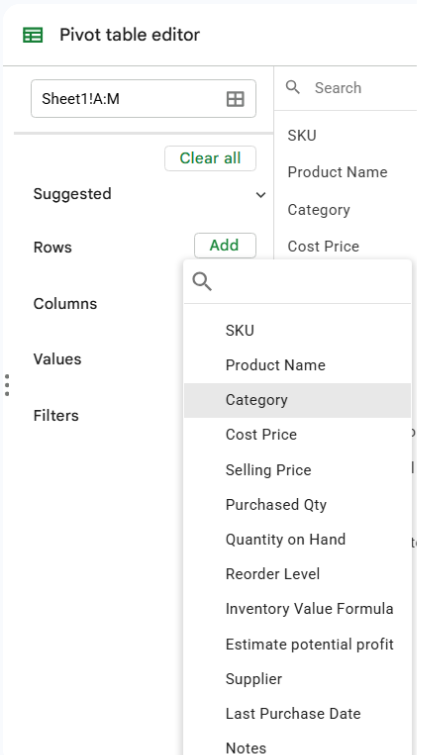
- Select “Category” to show all categories in each row –
- Click on “Add” button of Value then select “Quantity on Hand”
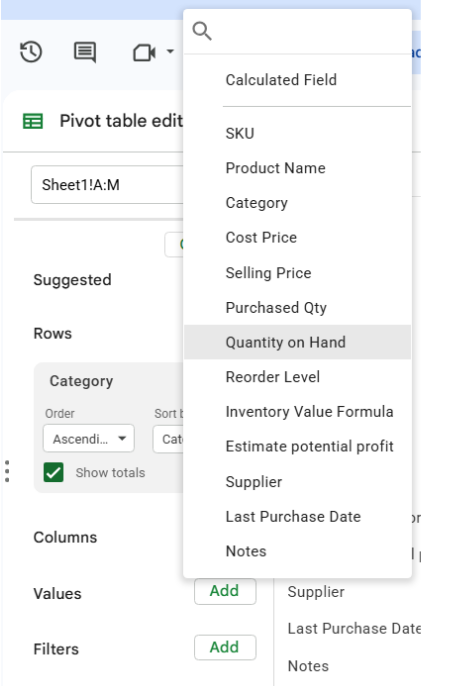
- This should show you the output pivot table. It will show you the total quantity for each category.
Step 6: Maintain Regular Updates
For accuracy:
- Update inventory daily or weekly
- Perform cycle counts
- Reconcile physical vs system stock regularly
Common Inventory Management Mistakes (That Cause Business Losses)
1. Not Updating Stock Regularly
2. Missing SKU System
3. Ignoring Reorder Levels
4. Duplicate Product Entries
5. Not Reviewing Reports
Google Sheets Inventory Management: Benefits, Pros & Cons
Google Sheets (Pros)
Google Sheets is ideal for small businesses because it offers:
- Free access
- Cloud storage (no data loss)
- Real-time collaboration
- Mobile access
- Easy sharing with staff
- Simple setup
It is one of the most practical starting points for retail inventory management.
Google Sheets (Cons)
- Manual updates required
- Prone to human error
- No barcode scanning
- Limited automation
As your business grows, spreadsheets become harder to manage. You should consider upgrading when:
- You manage 100+ products
- You have multiple staff updating inventory
- You operate multiple store locations
- You need barcode scanning
- Manual updates become time-consuming
- Stock errors increase frequently
At this stage, moving to an inventory POS system becomes essential.
Instead of spreadsheets, many growing retailers move to a dedicated inventory system like AlnicoSoft POS, which automates stock tracking and reduces manual errors.
With a system like this:
- Every sale updates inventory automatically
- Stock levels stay accurate in real time
- Reports are always up to date
- Barcode scanning reduces human errors
How Barcode Scanning Improves Inventory Accuracy
Barcode scanning significantly reduces human error and speeds up operations.
Key benefits:
- Faster stock counting
- Accurate product identification
- Improved checkout speed
- Reduced manual entry mistakes
- Better warehouse control
Modern POS systems integrate barcode scanning directly with inventory updates in real time.
Learn more about different barcode types and how they support inventory tracking in our guide on barcodes for inventory management. The article explains UPC, EAN, QR codes, and other barcode formats commonly used in retail.
Why Small Businesses Outgrow Spreadsheets Quickly
Most retailers start with spreadsheets but face these challenges as they grow:
- Data becomes inconsistent
- Staff make manual mistakes
- Reporting becomes slow
- No real-time updates
- Inventory tracking becomes reactive instead of proactive
This is where automation becomes necessary.
Inventory data is only useful when analyzed regularly.
Upgrade Path: From Google Sheets to Smart Inventory System
If your business is scaling, consider transitioning to a system that provides:
- Live inventory sync
- Barcode-based tracking
- Sales + inventory integration
- Multi-store management
- Role-based access for staff
This is where modern cloud POS platforms like AlnicoSoft POS help retailers move beyond spreadsheets into real-time inventory control.
Instead of updating inventory manually, AlnicoSoft automates everything:
Example workflow:
- You sell an item at checkout
- POS records the sale instantly
- Inventory is reduced automatically
Reports update in real time - You always know what is in stock
No spreadsheets. No delays. No guesswork.
Inventory data is only useful when analyzed regularly.
Why Inventory Accuracy Matters for Retail Growth
Poor inventory control leads to:
- Lost sales due to stockouts
- Overbuying slow-moving products
- Cash flow issues
- Customer dissatisfaction
- Time wasted on manual corrections
With automation, these problems disappear.
Google Sheets vs AlnicoSoft POS
| Feature | Google Sheets | AlnicoSoft POS |
|---|---|---|
| Setup Cost | Free | Affordable SaaS, Enjoy a 30-day free trial, followed by continued access to a 100% free plan with limited features.. |
| Inventory Updates | Manual | Free |
| Barcode Scanning | ❌ No | ✔ Yes |
| Multi-store Support | ❌ Limited | ✔ Full support |
| Staff Permissions | ❌ Manual | ✔ Built-in |
| Sales Integration | ❌ None | ✔ Fully integrated |
| Staff Permissions | ❌ Low | ✔ High |
Frequently Asked Questions
Is Google Sheets good for inventory management?
Can I use Google Sheets as a POS system?
What is the best free inventory template?
How often should inventory be updated?
Daily for retail stores or at minimum weekly.
When should I switch from spreadsheets?
When manual tracking becomes slow, inaccurate, or difficult to manage at scale.
Final Thoughts
A Google Sheets inventory spreadsheet is a great starting point for small businesses to manage stock and stay organized.
However, as operations grow, manual tracking can become time-consuming and error-prone.
At that stage, many retailers choose to move from spreadsheets to automated inventory systems that provide real-time accuracy, better control, and scalable operations.
The key is simple:
Start simple → build discipline → upgrade when your business demands automation.
Related Resources
- Barcode Guide – Learn about UPC, EAN, QR codes, and other barcode formats.
- How to Create & Print Barcodes in Microsoft Word – Generate barcode labels for your inventory items.
- Product ID vs SKU vs Product Code vs Barcode – Understand the differences and choose the right identifier for your products.
Looking for more than spreadsheets? Upgrade to real-time inventory control with AlnicoSoft POS built for small businesses. 👉